 CUT TO
 FADE / TABLE READ
Hear your screenplay
come to life.
Table Read gives your screenplay a voice on iPhone, iPad and Mac. Assign voices to characters, listen to your dialogue and hear how a scene flows before the next rewrite.
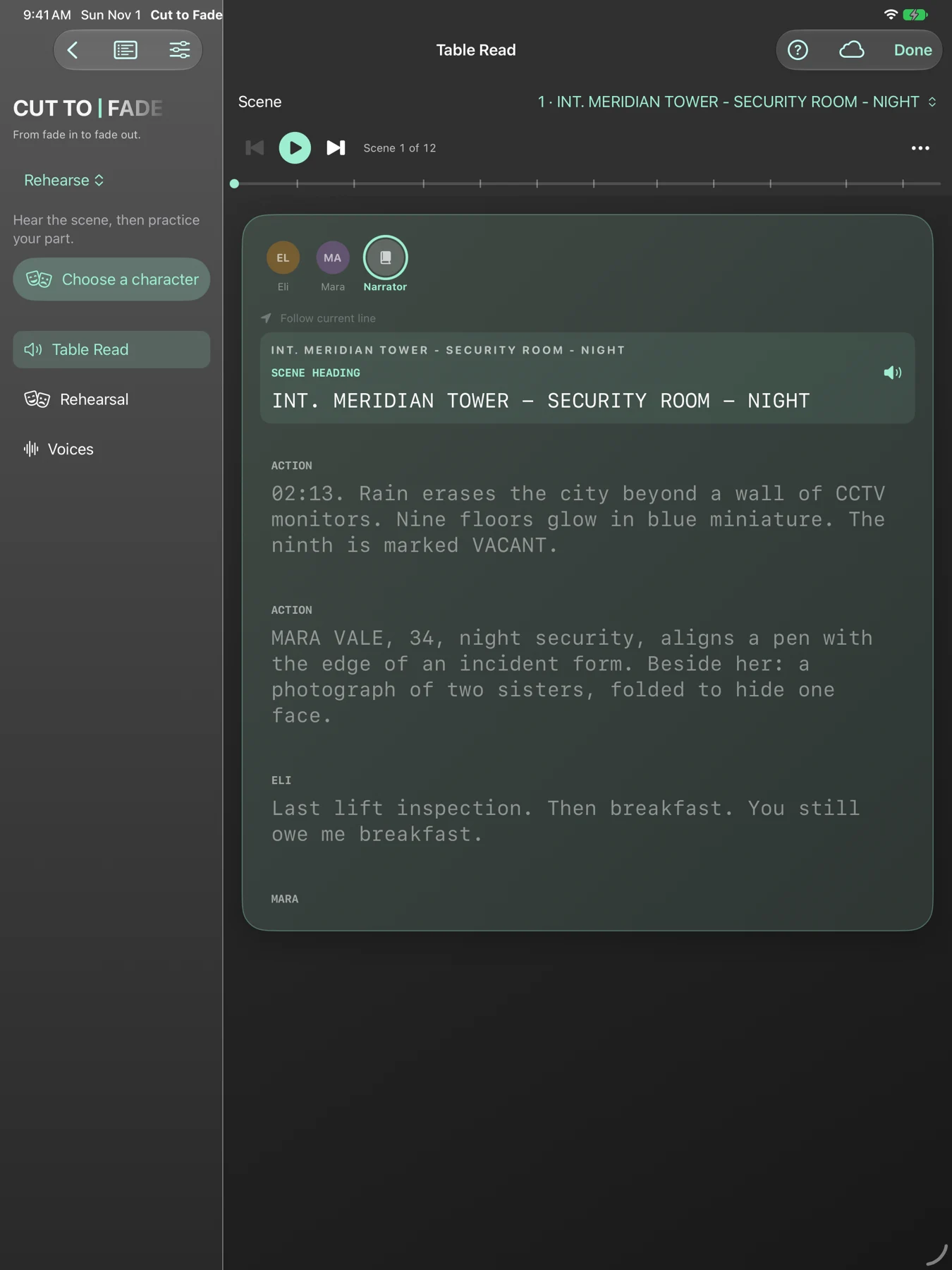
LISTEN BEFORE THE NEXT DRAFT
A table read for your writing process.
Reading a scene silently and hearing it aloud can reveal different things. Listen for repeated phrases, long speeches and moments where a character’s intention gets lost. Pause, revisit the passage in your screenplay and try the scene again.
Cut To Fade uses system voices and, on supported devices, natural voices that run on-device. Your script does not need to be uploaded to a voice service for Table Read.
How to hear your screenplay read aloud
Open a screenplay.
Start with a script in your library, or import an existing screenplay. Review imported formatting so character names, dialogue and scene headings are recognized correctly.
Open Table Read.
Find Table Read under Perform in the editor’s More menu on iPhone and iPad, or Tools on Mac. You can also find it in the Rehearse stage of the Production Workspace.
Choose your character voices.
Open the Voices card to audition and assign voices. Give each character a voice that makes it easy to follow who is speaking; the narrator has a separate voice.
Play, listen and revise.
Listen to the scene, pause when something needs attention, and return to your screenplay to edit it. Table Read plays a copy of your script without rewriting your text.
HEAR THE DIFFERENCE
The Last Train
An original scene with a narrator and three characters. Listen to a prerecorded sample of the synthetic voices available in Cut To Fade.
Voice delivery may vary by app version and settings.
Read the sample transcript →Table Read or Rehearsal?
Use Table Read when you want to hear the scene performed. When you want to practice your own part, open Rehearsal and choose your character. Cut To Fade reads the other roles and leaves space for you to respond.
Common questions
Can I try Table Read for free?
System voices and selected natural voices are available in the free app. Pro adds the full natural-voice collection and additional performance tools. Check the app for current pricing and availability.
Does Table Read work offline?
Table Read processes speech on-device. Available system voices depend on what is installed on your device. Natural voices require supported hardware and software; prepare your read while the app is open before relying on background playback.
Does it change my screenplay?
No. Table Read works from a copy of your screenplay’s paragraphs and does not write changes back to the script.
Where can I find detailed instructions?
The Table Read chapter of the user manual covers hearing your screenplay. Continue to the Rehearsal chapter to practice your part, or contact support for help.
FROM FIRST READ TO NEXT REWRITE
Listen to your next scene.
Write, hear, rehearse and plan your film in Cut To Fade.
Download on the App Store ↗